
Collaboration
Share your tasks with your collaborators.
Toodledo makes it easy to collaborate with other people and share your to-do list. You have complete control over who has permission to read, edit and/or add items your to-do list.

Overview
There are three ways to share your tasks. Workspaces allow you to privately view another person's list and manage their tasks. Joint Tasks allow multiple people to privately share the same task. Publishing allows you to publish your list for the entire world to see. Private collaboration is an advanced option that is available only to Subscribers.
Invitations
To collaborate with someone, you must send them an invitation.
1 Open the Account Menu in the top right corner of the screen and click "Collaboration" from the organize section.
2 From the collaboration setup page, click the "Add Collaborator" button and enter the other person's email address. If they are not a Toodledo member, they will receive an email invitation to create an account and collaborate with you. If they already have a Toodledo account, they will receive an email notice and will be able to go to their collaboration setup page and accept your invitation.
Important! An invitation is a one-way street. When you send someone an invitation, you are inviting them to see your tasks. If you also want to see their tasks, they will need to send you an invitation as well to make it a two-way street.
Permissions
For each collaborator, you will be able to select which folders they can see, and whether or not they can read, add to, or edit your list. There are three different levels of permissions that you can give a collaborator.
Permission 1Can View my Tasks: This collaborator will only be able to view tasks. They will not be able to edit any information, and they will not be able to give you new tasks. See Figure 1
Permission 2Can Assign me Tasks This collaborator will be able to view your tasks, and give you new tasks. They will not be allowed to edit existing tasks. See Figure 1
Permission 3Can Edit my Tasks This collaborator will be able to view and edit your tasks. This includes the ability to edit notes, mark tasks as completed, delete tasks, and reassign tasks to other people. They will also be able to add new tasks to your list. See Figure 1
Folders In the "Allowed Folders" section, you can choose which folders they can access. You can choose to share all of your folders, or you may pick specific folders to share with each collaborator. Private folders are always excluded. You can also choose to make contexts or goals private to prevent sharing certain tasks even if they are in a shared folder. See Figure 1
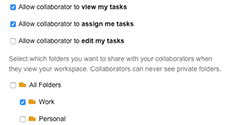 Figure 1: Private sharing permissions
Workspaces
Workspaces are a feature that allows you to give other people permission to manage your list. They can sort, filter and search through your to-do list, just like you can.
You can use workspaces with anyone who has a Toodledo account, but only other Subscribers will be able to add or edit your tasks (if you let them). If your collaborator has a Free Toodledo account, they will only be able to read your to-do list.
If someone has shared their tasks with you, a menu will be added to the page below your login, called "Workspace". See Figure 2
When you click on this menu, you will see a list of collaborators that have given you access to their workspace. Selecting a collaborator reloads the page with their tasks instead of yours. You can sort, filter and search through your collaborator's tasks just like you could do with your own.
To switch back to your tasks, you can return to the "Workspace" menu and pick "Me".
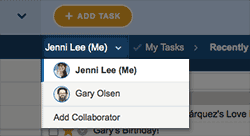 Figure 2: Viewing other people's tasks
Adding and Editing Tasks in a Collaborator's Workspace
Before you can add a task to someone else's list, they must have given you permission to do so. Assuming that they have, there are two ways to give them a new task.
Adding Tasks: Method 1The first way is to go to their task workspace See Figure 2 and click the "Add Task" button. From then on, it is identical to the way that you would add a task to your own list.
Adding Tasks: Method 2The second way is to click the "Add Task" link when viewing your list, and then choose your collaborator from the "Assigned To" field.
Editing TasksIf your collaborator has given you permission to edit their tasks, you can do so just like you would edit your own tasks.
Assigning & Re-Assigning Tasks
When someone adds or moves a task onto your to-do list, it will appear as a normal task, just like all the other tasks. There are two ways to see which tasks were assigned by which people.
View Assigned Tasks: Method 1 The first ways is to click on the Collaboration Icon from the ribbon to see your collaboration view. This view will have a to-do list for each collaborator and you will be able to quickly see which tasks were assigned by which people.
View Assigned Tasks: Method 2The second way is to go into your account settings and turn on the "Assignor" field. This will add a field to each task that will display who assigned it. You can also reveal the action menu by clicking on the task's Action Icon and it will display the assignor's name.
Re-Assigning TasksIf you want to reassign an existing task to someone else, you can click on the task's Collaboration Icon and then choose the Reassign option. The task will leave your list and will go onto their list. It is now their responsibility.
Your folders, contexts, goals and locations are different from your collaborator's folders, contexts, goals and locations. When you reassign a task to someone, the folder, context, goal and location will be set to "none" because it is not currently possible to link up these values. If your collaborator has not given you permission to view the "no folder" folder, it is possible that you could reassign a task to them that you would then no longer be able to see.
Joint Tasks
Joint Tasks are a way to share tasks with collaborators and have that task appear on each person's list simultaneously. Any of the collaborators can edit, complete or delete the task and it will update on each person's list. This is a great way to manage team projects where anyone on the team can complete any of the tasks.
Setup Open the Account Menu in the top right corner of the screen and click "Collaboration" from the organize section. From this page click the "Can create joint tasks with me" checkbox to allow a collaborator to share tasks with you. They will need to do the same thing from within their account if you want to share your tasks with them.
Share Once this is setup, you share a task by clicking on the Collaboration Icon and selecting their name.
Remove If a collaborator does not want the task on their list anymore, they can remove themselves by clicking on the Collaboration Icon.
The people that you have shared the task with can do anything that you can do to the task. They can edit any field, change the note, add subtasks, complete the task and even delete it. Any of these actions will be mirrored to each collaborator's list. The only thing a collaborator cannot do is change how the task is shared. Only the original owner can add or remove people from the shared task.
Activity Log
Each time a joint task or reassigned task is edited, the action is logged for the invested collaborators to see.
Activity Log Open the Account Menu in the top right corner of the screen and click "Collaboration" from the organize section. From here click "Activity Log".
Activity Reminders Open the Account Menu in the top right corner of the screen and click "Collaboration" from the organize section. From here click "Notifications". From this page, you can register for email alerts when changes are made to tasks that you have an interest in.
When two people are editing the same task at the same time, via Workspaces or Joint Tasks, only the most recent edit will be saved. In the future we may provide a way to resolve conflicts like this, but for now you should be aware that the person who presses the save button last will win.
Privacy & Publishing
Publishing is a way for you to share your to-do list so that anyone can view it. Permissions for Workspace Sharing are managed at the folder level. It is up to you to decide which folders you want to share, and which folders you want to remain private.
Enable Publishing Open the Account Menu in the top right corner of the screen and click "Collaboration" from the organize section. From here click "Public Sharing". When you enable this option, you will be given a special URL that will display a read-only version of your to-do list to anyone who visits. Any task that resides in a private folder, context or goal (see below) will not be displayed.
Private Folders Open the Account Menu in the top right corner of the screen and click "Folders" from the organize section. If you have certain folders that you never want to share, you can mark these folders as "private" from this page. Any folder that is marked "private" will be excluded from Workspace Sharing and Publishing See Figure 3. Private folders do not restrict your ability to reassign tasks or create joint tasks.
If you have enabled Joint Task Sharing and a collaborator shares a task with you, Toodledo will attempt to match up the folder to one that you already have, by comparing the names. It will never put it into one of your private folders. If you do not have a matching folder, it will be created for you.
You can make any context or goal private in the same manner. It is not currently possible to make tags or locations private. Collaborators will be able to see the names of your tags and locations in the menu that appears when they edit a task that they have permission to edit.
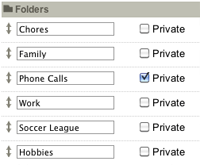 Figure 3: Marking folders as private