
Subtasks
Break your Tasks down into multiple steps.
Subtasks are a convenient way to organize projects and tasks that have multiple steps. This helps you stay organized and keeps your to-do list less cluttered. Subtasks are available with a subscription.
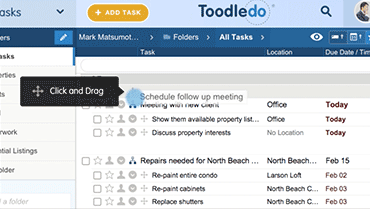
Levels of Hierarchy
Toodledo has three levels of hierarchy: Folder, Task and Subtask. See figure 1
Any task can be turned into a container that holds other tasks. This allows you to organize things into three different levels of hierarchy. The terminology that Toodledo uses for these three levels is Folder Task Subtask.
Although this may seem straightforward, there are some unique behaviors that you should understand about subtasks before you start using them.
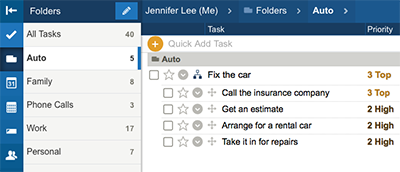 Figure 1: Folders, Tasks and Subtasks
Display Options
Subtasks can be displayed in three different ways. Control this display using the Filter Menu.
Locate the Filter Icon above your to-do list and click it to open the Filter Menu. From here you can choose from three display options.
Option 1: Inline Choose inline to see all subtasks and parent tasks ungrouped and flattened out. To temporarily regroup the subtasks under their parent, click the icon adjacent to the task.
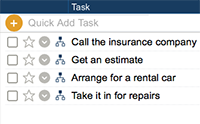 Figure 2: Display set to "Inline"
Option 2: Hidden Choose hidden to hide all subtasks. This will show only the parent tasks. To temporarily view the subtasks, click the icon adjacent to the task.
When subtasks are nested, they will be hidden inside their parent task and will only be visible when you reveal them. This could cause you to forget about an important subtask.
Option 3: Indented Choose indented to see your subtasks grouped with their parents. Click the icon adjacent to the task to temporarily hide the subtasks.
Figure 3: Display set to "Indented"
It is important to understand the nesting behavior as it applies to different views and sorting. When subtasks are viewed hidden or indented, they will always appear inside their parent and may not appear in certain views or sections where you would normally expect to find them. For example, a subtask that is due today will not appear in the "Due Today" section unless the parent task is also due today. You can control this behavior in your account settings.
Creating Subtasks
There are three ways to create subtasks with Toodledo.
Method 1 Locate the Move Icon adjacent to the task that you wish to move. Click and drag this icon to move the task into another task and turn it into a subtask.See Figure 4
Method 2 Find the task that you would like to add subtasks under. Click the task's Action Button and select "Add Subtask(s)".
Method 3Find the task that you would like to add subtasks under. Hover your mouse over the Subtask Icon or Move Icon icons until the popup menu appears. Choose "Add Subtask(s)" from the popup menu.
 Figure 4: Drag and drop tasks to create subtasks
Moving Subtasks
Toodledo has made it very easy to organize your tasks and subtasks by using drag and drop. See figure 5
By default, subtasks are sorted within their parent tasks using the same criteria that you use to sort your list. If you would rather sort subtasks manually, you can enable this option in your account settings and then drag and drop subtasks into your preferred order. You can also move a subtask to a different parent by using drag and drop.
1 Locate the Move Icon adjacent to the subtask that you want to move.
2 Click and drag this icon.
3 Drop it in a different task to move it, or drop it within the same parent task to change the order.
Figure 5: Drag and drop tasks to create subtasks
To remove a subtask from its parent task, just drag it out and drop it off to the top, bottom or side.
Completing Subtasks
Subtasks can be completed individually, or as a group.
Click the task or subtask's checkbox to mark it complete.
Complete Group When you complete a task that contains uncompleted subtasks, those subtasks will be automatically marked as completed. If these tasks are important, you should move them out of their parent task before you mark it as completed.
Complete Individual Click the individual subtask's checkbox to mark only that one subtask as complete. When you check off a subtask as being completed, it will be marked as completed and will no longer appear under the task unless you have the "show completed tasks" filter turned on.
Deleting Subtasks
Subtasks can be deleted individually, or as a group.
Click the task or subtask's Action Button and select "Delete Task" or "Delete Subtask".
Delete Group To delete a parent task and all of its subtasks, click the parent task's Action Button and select "Delete Task". You will be asked to confirm this action.
Delete IndividualTo delete only one subtask click the subtask's Action Button and select "Delete Subtask". You will be asked to confirm this action.
Repeat with Subtasks
Choose your preference for repeating tasks and subtasks in your settings section.
Repeating SubtasksIf you have a subtask that is set to repeat, it will automatically reschedule itself and remain within its parent task each time that you complete it.
Repeating Task with Subtasks If you have a task that is set to repeat and this task contains subtasks, those subtasks may or may not get carried forward depending on your settings. To have a subtask carried forward when you complete a repeating parent task, you must set the subtask to repeat in some fashion. Subtasks have an additional repeating option of "With Parent" which can be used when you only want to complete a subtask once within each occurrence of the parent task. Subtasks that do not repeat are considered to be one-time tasks that will not be carried forward when you complete the parent task.
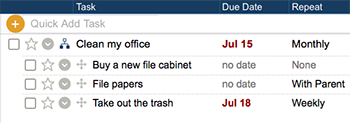 Figure 6: Repeating Tasks & Subtasks
In the adjacent example See Figure 6, "Buy a new file cabinet" is a non-repeating subtask, so it will not carry forward when you complete the parent task. The "File papers" subtask is set to repeat when the parent task is completed. This means that when you mark it as completed, it will disappear from this month's "Clean my office" task. When you finally completed the parent task, it will reappear on next month's "Clean my office". The subtask "Take out the trash" is a weekly repeating subtask. When you mark it as completed, it will automatically be rescheduled within its parent task one week in the future. When you complete the parent task, this subtask will also get carried forward to the new task.